Offline Conversions from a Google Sheet: Good Enough for Longer Than You Think
By Rajesh Kumar, Founder, Attribi ·
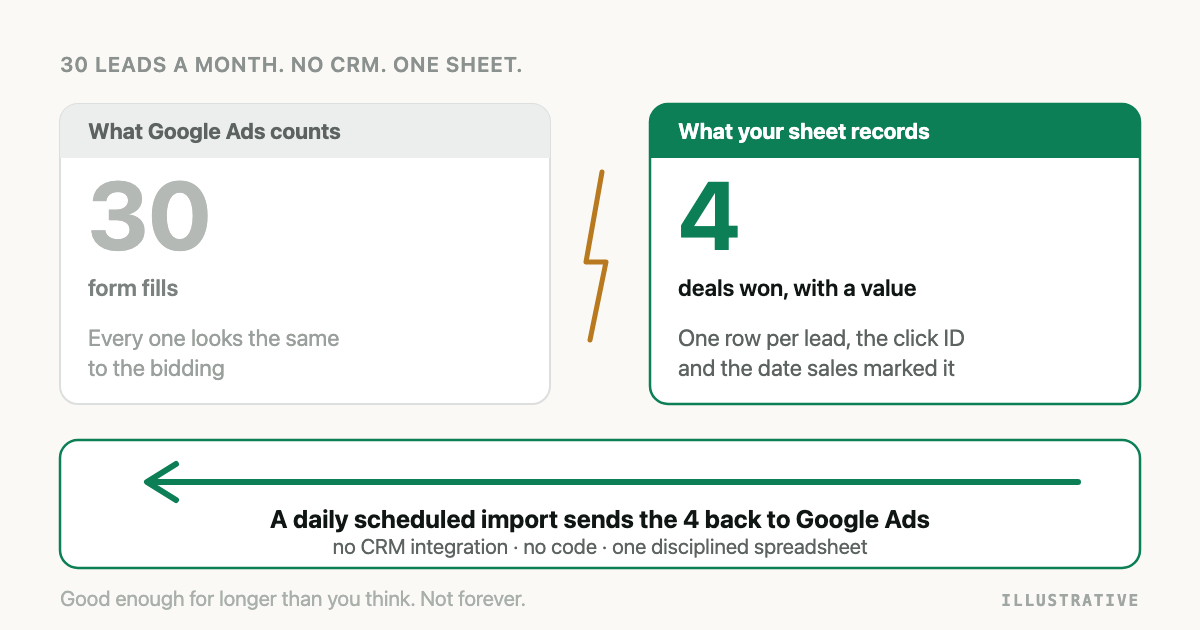
You get 30 leads a month from Google Ads. You know which four became customers, because you wrote it down in a spreadsheet. Google Ads does not know. It sees 30 identical form fills and bids as if they were all worth the same.
The usual advice at this point is to buy a CRM and then buy something to connect the CRM to Google Ads. For a business this size I think that advice is backwards. The spreadsheet you already keep can be the source.
You can upload offline conversions from Google Sheets to Google Ads without a CRM. Keep one row per lead with the Google click ID, the email, the outcome and the time it happened, connect the sheet as a data source in Google Ads Data Manager, map the columns, and schedule a daily import. Google deduplicates the rows it has already seen.
What is an offline conversion upload from Google Sheets?
An offline conversion upload from Google Sheets is a Google Ads import in which a spreadsheet is the data source. Each row is one outcome that happened after the ad click, such as a qualified lead or a signed contract, identified by the Google click ID or by the lead's email or phone. Google Ads reads the sheet on a schedule and attributes each row to the click that produced it.
Google does not treat this as a workaround. Its offline conversion imports FAQ asks whether you need a CRM and answers: "A Google spreadsheet will also work."
If you want the wider map of upload routes first, the pillar is Google Ads Offline Conversion Import in 2026.
Which Google Sheets route should you use, the old template or Data Manager?
There are two, and Google has marked one of them as the past.
The legacy file template. This is the spreadsheet most guides still describe, with a
Parameters:TimeZone= row on top and fixed headers beneath it. Google's help page for it now
carries the word "legacy" in its title,
and states that enhanced conversions for leads only supports Google Ads Data Manager files.
The Data Manager connection. You connect a Google Sheet as a data source inside Google Ads, map your own column headers to Google's fields, and set a schedule. There is no fixed template. Google's Google Sheets data source page documents it for both offline conversion import and enhanced conversions for leads.
| Legacy template | Data Manager connection | |
|---|---|---|
| Where you set it up | Goals > Conversions > Uploads > Schedules | Goals > Summary > New conversion action > Import, or Tools > Data manager |
| Column headers | Fixed: Google Click ID, Conversion Name, Conversion Time, Conversion Value, Conversion Currency, optional Order ID | Yours. You map them to Google's fields |
| Time zone | Parameters:TimeZone=America/Chicago or Parameters:TimeZone=-0500 in the parameters row | In the timestamp itself, or a fallback time zone set on the connection |
| Hashing email and phone | You must pre-hash with SHA-256 for a scheduled upload | Data Manager normalises and hashes for you |
| Enhanced conversions for leads | Not supported in the legacy file format, per Google | Supported |
| Schedule | A Frequency and a Time drop-down | Manually, daily or weekly. Daily is the maximum |
If you have a legacy scheduled upload running today that only sends click IDs, nothing on Google's pages says it stops tomorrow. For anything new, build on Data Manager.
What does the sheet need to contain, and who fills it in?
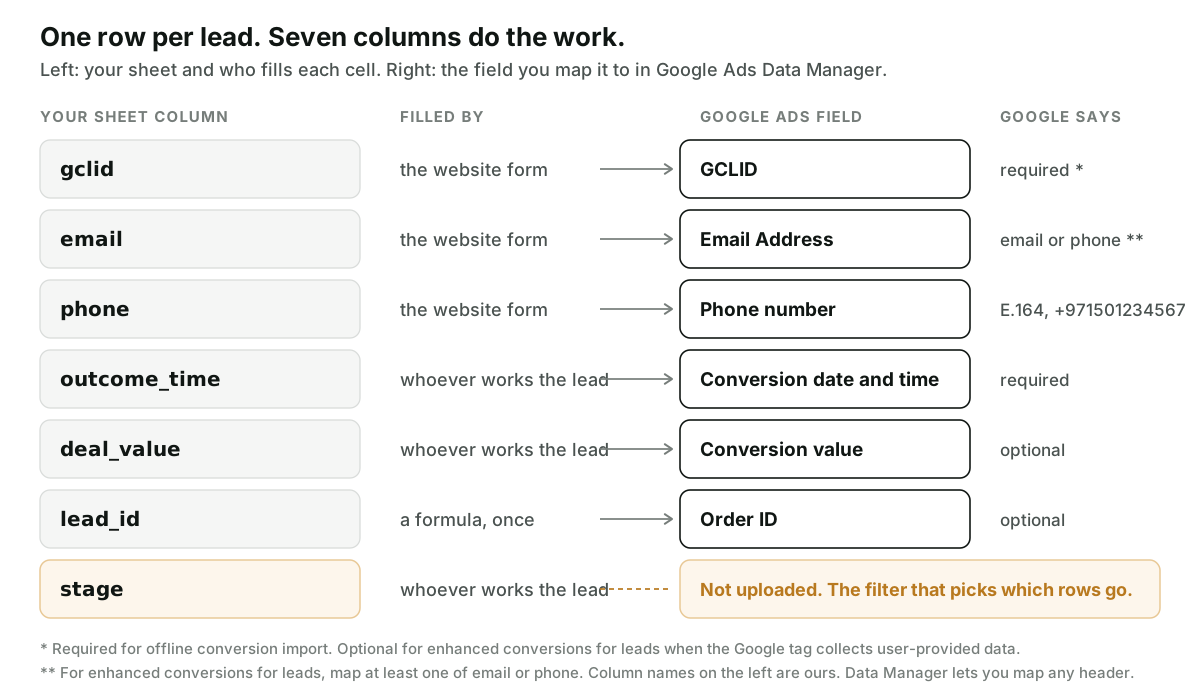
One row per lead. Your website fills half the columns when the form is submitted. A person fills the rest later, when something happens to the lead.
The field names and rules below are from Google's Prepare your data for import page. The column names on the left are a suggestion. Data Manager maps whatever header you use.
| Your column | Maps to | Google's rule | Filled by |
|---|---|---|---|
gclid | GCLID | Required for offline conversion import. Optional for enhanced conversions for leads if your Google tag collects user-provided data | The website form |
email | Email Address | For enhanced conversions for leads, map at least one of email or phone | The website form |
phone | Phone number | E.164: a plus sign, country code, 11 to 15 digits, no spaces or dashes | The website form |
outcome_time | Conversion date and time | Required. Needs a time zone, in the cell or as a fallback on the connection | Whoever works the lead |
deal_value | Conversion value | Optional | Whoever works the lead |
lead_id | Order ID | Optional. A unique identifier for the transaction | A formula or the form tool |
stage | Nothing. It is a filter | Data Manager allows one filter per connection with up to 25 conditions | Whoever works the lead |
Three notes on that table.
Getting the click ID into the gclid column is its own job. A form tool that writes submissions
to a sheet will only write the click ID if the form captured it. How to Get the GCLID into Your CRM covers the hidden field and
the cookie, and all of it applies when the "CRM" is a spreadsheet.
Google's field list also includes GBRAID and WBRAID. If your form captures them, give each its own column and map it.
That same field list has a conversion value and no separate currency field, where the legacy
template had a Conversion Currency column. I could not confirm a currency mapping for Sheets on
Google's documentation, so if you sell in more than one currency, check the mapping screen before
you rely on it.
How do you upload offline conversions from Google Sheets on a schedule?
Before you start: Google requires Editor access to the sheet and administrative access to the Google Ads account. For enhanced conversions for leads you also need to have accepted the customer data terms under Goals, then Conversions, then Settings.
- Put the lead data on the first tab. Data Manager reads only the first sheet of a spreadsheet. Headers go in row one. Each header must start with a letter or an underscore.
- Decide which outcome you are sending. Qualified or won. Pick one to begin with. Google's own guidance is a separate conversion action per funnel stage, and choosing "Qualified lead" or "Converted lead" as the goal category.
- In Google Ads, open Goals, then Summary, and click New conversion action. Choose Import, then "CRMs, files, or other data sources", then a tracking method.
- Under Data source, choose "Connect a new data source". Search for Google Sheets and select Direct connection. Select Conversions as the use case and accept the customer data policy.
- Authorise and pick the file. Sign in to the Google account that owns the sheet, click Allow, and select the spreadsheet.
- Add the filter. For example,
stageequal toQualified. Without it, every row with a timestamp is a conversion. - Map the fields using the table above.
- Leave the "Convert date and time" transformation on and set a fallback time zone. Google adds this transformation to conversion time columns by default. Rows with no time zone and no fallback are not imported.
- Name the connection, finish, and set the schedule to daily.
Then wait. Google says imported conversions take about three hours to appear, and recommends the "All conv. (by conv. time)" column, segmented by conversion action, to check that they arrived. Connections are listed on the Data manager page. The conversion action has its own Diagnostics tab.
If rows are rejected, the error text tells you why, and Google Ads Offline Conversion Errors, Decoded One at a Time goes through them. Two that Google's FAQ lists are a conversion dated before its click and a click too old to import.
What does Google do with the same row every day?
A sheet is not a queue. Nothing removes a row after it is sent, so the same won deal is read on Monday, Tuesday and Wednesday. Google's deduplication handles it. For Sheets, Data Manager imports conversions from the last 90 days on every run, and Google Ads will not import the same conversion twice. The identity of a conversion is the combination of the click ID or user data, the conversion name, and the conversion time. Send that combination again and it is counted once.
The conversion time is part of that identity. If someone "corrects" the outcome_time on a row
that has already been imported, Google sees a different conversion for the same click, and
depending on the conversion action's count setting it can be counted again. Treat outcome_time
as write-once. If you protect one column in the sheet, protect that one.
Do you have to hash the emails yourself?
It depends on the route, and the two routes give opposite answers.
On the Data Manager connection, no. Google's documentation says you do not need to pre-format the data: Data Manager normalises the personal fields, hashes them with SHA-256 and sends the result. Plain emails and E.164 phone numbers in the sheet are what it expects.
On the legacy scheduled upload, yes. Google states that for scheduled uploads with enhanced conversions for leads, user-provided data must be pre-hashed. Only the one-time manual "Upload file" option hashes unhashed data for you. If you do end up hashing in a spreadsheet, the normalisation before the hash is where it goes wrong, and Hashing Emails for Google and Meta covers it.
Where does a sheet stop being enough?
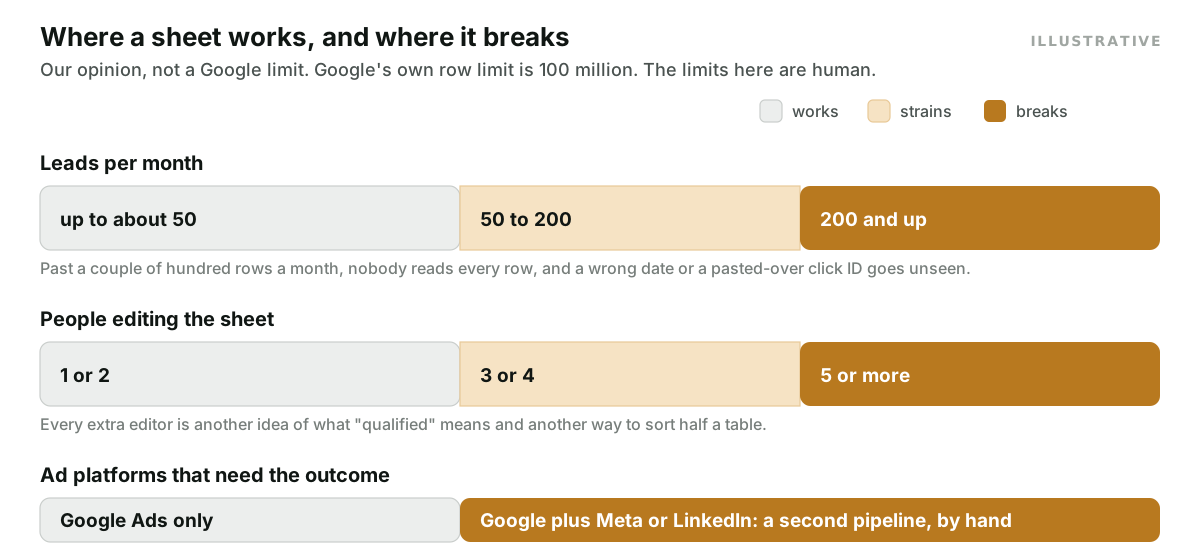
Not at Google's limit. Data Manager's documented ceiling is 100 million rows per import. The ceilings you will hit are human, and the numbers in the picture are my opinion, not a measurement.
Typing. A date entered as 02/01/2026 means February in one country and January in another. Google's page says that if Data Manager detects a row in day-first format, the import fails. That is the good outcome. The bad one is a column where every date is valid both ways.
Sorting. Someone selects three columns, sorts them, and the click IDs now belong to different leads. Nothing errors. Revenue is attributed to the wrong clicks. This is why I put the ceiling at a couple of people.
One platform. The connection feeds Google Ads. Meta and LinkedIn each have their own upload with their own format and their own identifiers. A second platform means a second pipeline maintained by hand.
No history. A row holds the current stage. When a lead moves from Qualified to Won, the qualified timestamp is overwritten unless each stage has its own time column. Sending both stages means two conversion actions, two filters and two time columns.
The window. Google will not import a conversion uploaded more than 90 days after the click, or 63 days for enhanced conversions for leads. A sheet updated on the last Friday of the month loses the long deals. Google also asks for uploads at least daily if Smart Bidding is to use them. If your deals routinely run past the window, Your Sales Cycle Is Longer Than Google's Memory is the one to read.
One caution applies to every route. An imported conversion changes bidding only if it is the goal the campaign bids toward and it has enough volume. Four won deals a month is a reporting signal. Not Enough Conversions for Smart Bidding explains which stage to choose when volume is that low.
How Attribi handles a sheet
Attribi is the tool I build. Its Google Sheets connection takes the opposite approach to the one above: the sheet is where people mark the outcome, and Attribi does the uploading.
When a visitor converts on your site, Attribi appends a row to a tab you pick. The row has 50
columns: the lead's details, five touches with source, campaign and click ID, then
Attribi Lead ID, Status, Deal Value and Currency. Status is a dropdown of Lead, Qualified
and Closed Won. Once a day Attribi reads those four columns back. For any row that moved forward
it records the stage and sends it to your connected ad platforms the way a CRM stage change is
sent. The click ID was captured at the visit, so nobody types or pastes one.
Rows are matched by the lead ID, so a sort does not reassign click IDs, and the same Status change goes to every ad platform you connected. It does not remove the human. The limits:
- The read is daily. A status changed just after a run waits for the next one.
- Each run handles up to 200 stage changes and scans the first 5,000 rows of the tab.
- Closed Won needs both a deal value and a three-letter currency code. If either is blank, the lead is recorded as qualified and the close is skipped. Nothing in the Attribi interface flags the skipped close yet.
- A row you type in by hand has no lead ID and is ignored. The sheet progresses leads the tracker captured. It cannot create them.
- If nobody updates the Status column, nothing is sent. No software fixes that.
The Sheets connection is available on every plan. Sending conversions to an ad platform starts on Starter, 49 dollars a month. Every new workspace starts with 30 days on the Pro plan, no card required, which is long enough to run a month of leads through a sheet and see what reaches Google Ads. The column layout is on the Google Sheets integration page.
Frequently asked questions
Can I upload offline conversions to Google Ads from Google Sheets without a CRM? Yes. Google Ads accepts a Google Sheet as a data source through Data Manager, and Google's own FAQ says a spreadsheet works in place of a CRM. The sheet needs a click ID or the lead's email or phone, and a conversion time.
How often can Google Ads import conversions from a Google Sheet? A Data Manager connection can run manually, daily or weekly, and daily is the maximum. Each run for a Google Sheet looks back over the last 90 days of conversions, so a row added late is still picked up as long as it is inside the upload window.
Do I have to hash emails in a Google Sheet before Google Ads imports it? Not with a Data Manager connection, which normalises and hashes email and phone for you. The legacy scheduled upload is different: Google requires pre-hashed data there when enhanced conversions for leads is involved. Only the legacy one-time manual upload hashes unhashed data.
Will Google Ads count a conversion twice if the same sheet row is imported every day? No, as long as the row does not change. Google identifies a conversion by the click ID or user data, the conversion name and the conversion time, and counts that combination once. Editing the conversion time on a row that was already imported can create a second conversion.
Does the old Google Click ID upload template still work in Google Sheets? Google still documents it, with scheduled uploads under Goals, Conversions, Uploads, Schedules, and labels the page legacy. It states that enhanced conversions for leads only supports Data Manager files. Use Data Manager for anything new.
Which tab of a spreadsheet does Google Ads Data Manager read? Only the first one. Headers must be in the first row of that first sheet, and each header must start with a letter or an underscore. Keep notes, pivots and archives on later tabs.
The takeaway
At 30 leads a month, with one or two people touching the data and Google Ads as the only platform, a sheet and a daily Data Manager import is the setup I would choose first. It teaches you which outcome is worth sending before you pay anyone to send it. Protect the click ID and the conversion time. When a second platform or a fifth editor arrives, move. If you want the sheet without the upload plumbing, start a workspace with 30 days on Pro.