Enhanced Conversions for Leads Not Working: Nine Causes, in the Order to Check Them
By Rajesh Kumar, Founder, Attribi ·
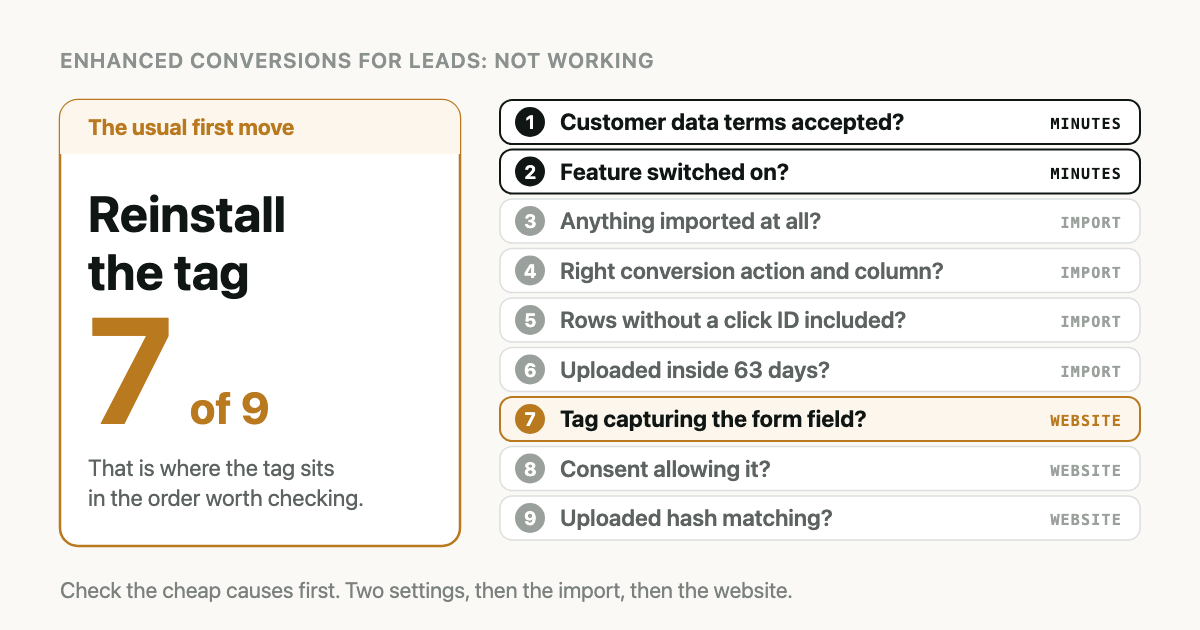
You switched on enhanced conversions for leads weeks ago. The diagnostics tab says "Needs attention", or the conversion column has not moved, or leads match on click ID exactly as they did before and never on email. So you do the obvious thing and reinstall the tag.
Stop there. The tag is the most expensive thing to check, and six cheaper causes come before it.
When enhanced conversions for leads is not working, check the account settings and the import before you touch the tag. Go in this order: the customer data terms, the feature switch, whether anything is imported at all, the conversion action, imports limited to rows with a click ID, the 63-day limit, the tag's form capture, consent, and last the hash.
What the feature is, and what it can and cannot do for lead quality, is in Enhanced Conversions for Leads Fixes the Match. It Does Not Fix the Signal.
What does "enhanced conversions for leads not working" actually mean?
Enhanced conversions for leads not working means that conversions you import from your CRM are not being matched to ad clicks through the hashed email or phone number, even though the feature appears to be set up. Either Google rejects the hashed data, never receives it, or receives a hash that matches nothing it has on record.
One expectation to set before you start. Not every uploaded lead is supposed to match. Google's page on import discrepancies says that with enhanced conversions for leads only a portion of what you upload will be attributed to Google Ads, and treats that as expected. A lead who never clicked an ad should not match. "Not working" means the leads who did click are not matching either.
In what order should you check?
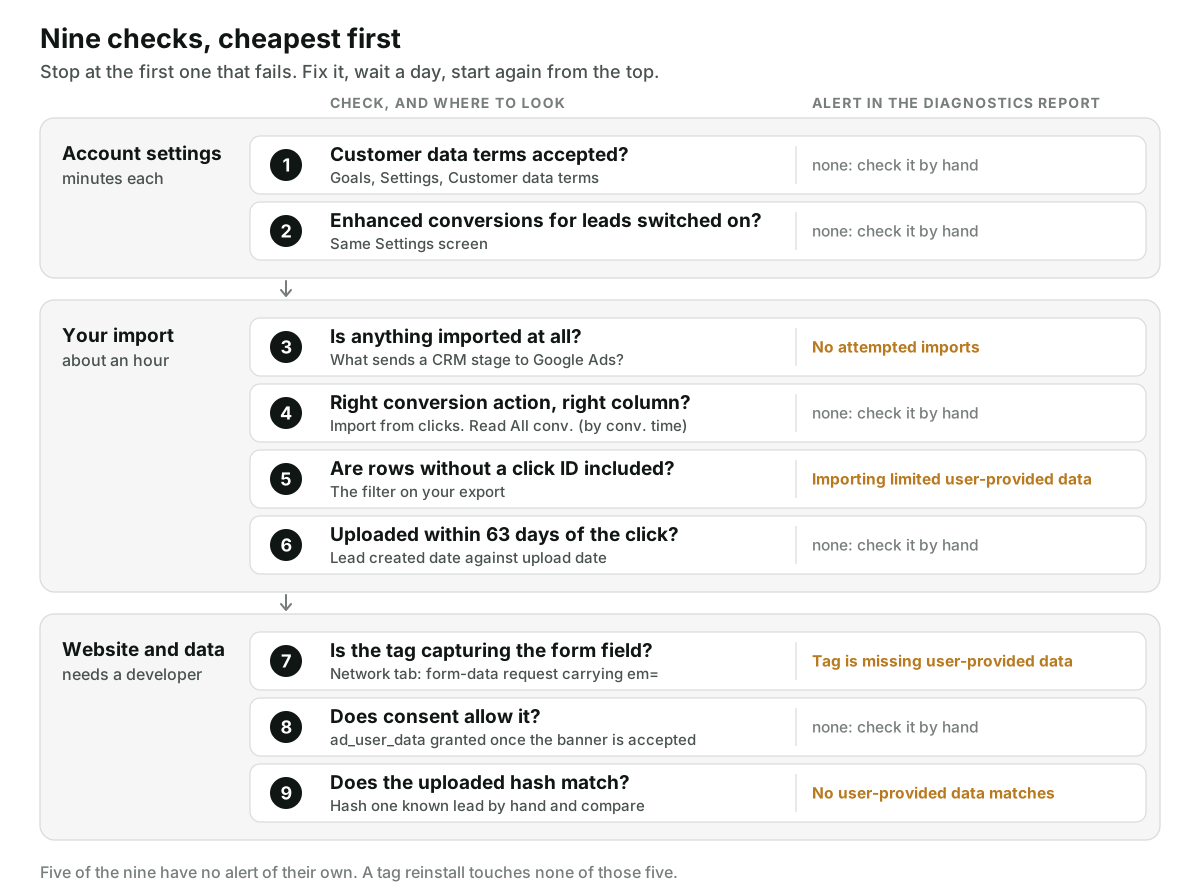
Cheapest first. The first two checks are settings you can read without touching the website. The next four you can answer from your upload job and one report. Only the last three need developer tools or code.
Causes 1 and 2: the account settings
1. The customer data terms were never accepted
What you see. Uploads that carry a hashed email or phone are refused. Uploads that carry only a click ID go through.
How to confirm. In Google Ads open Goals, then Settings under Conversions, and look
for Customer data terms. Google's
tag setup guide describes the
acceptance: select View Terms, tick the box, select Agree. If the option to accept is
still there, nobody has. A developer can read the same fact from the Google Ads API: the
offline conversions guide
says customer.conversion_tracking_setting.accepted_customer_data_terms must be true.
Fix. Accept them. The checkbox says you accept on behalf of your company, so an agency may need to ask the client.
Our own upload code has a branch for this. On the Data Manager API the refusal arrives with the
reason DESTINATION_ACCOUNT_ENHANCED_CONVERSIONS_TERMS_NOT_SIGNED, which Google's
error reference
describes as the destination account not having agreed to the terms for enhanced conversions. It
applies to the request, not to one event inside it.
2. Enhanced conversions for leads is not switched on
What you see. Google does not document a symptom of its own for this one. Treat it as the twin of cause 1.
How to confirm. In the same Settings screen, expand Enhanced conversions for leads and
check the box is ticked. Google's
upgrade guide walks through it. On
the API side the field is enhanced_conversions_for_leads_enabled, and Google's guide says both
this and the terms field must be true.
Fix. Tick it and save.
Older guides tell you to pick a method here (Google tag, Google Tag Manager or API) and warn against the wrong choice. The same Google page now states that from April 2026 Google Ads accepts user-provided data from website tags, Data Manager and API connections, and you no longer choose between methods. So "wrong method selected" is not on this list.
Causes 3 to 6: the import
3. Nothing is being imported
What you see. The tag is installed, the form works, and the diagnostics report shows the alert No attempted imports.
How to confirm. Ask what, exactly, sends a row from the CRM to Google Ads when a lead is qualified. If the answer is "the tag", there is no import. The tag only records the hashed email at the form fill. Google's overview lists two configuration steps, the tag and the import of offline conversion data, and the second one is the conversion.
Fix. Build or connect the import. The routes available today, and which ones are closing, are in Google Ads Offline Conversion Import.
4. The conversion action is the wrong kind, or you are reading the wrong column
What you see. Uploads are accepted. The Conversions column for your campaigns does not change.
How to confirm. Three things, all on the conversion action:
- Its source is an import from clicks. In the API that is type
UPLOAD_CLICKSwith statusENABLED. An action created for website tracking is the wrong target. - It lives in the account you upload to. Google's discrepancies page lists the wrong account, and a manager account that does not own the action, as upload errors of their own.
- It may be set as secondary. Google's implementation checklist recommends keeping a new action secondary for the first two to three weeks, and secondary actions are reported in the All conversions column only, not in Conversions. The checklist says to verify imports with All conv. (by conv. time).
Also widen the date range. Google's developer guide says imported conversions report on the date of the original click's impression, so in the standard columns a lead qualified today from a click three weeks ago lands three weeks back.
Fix. Upload to an import-type action in the right account, then read the right column over a range that includes the clicks.
5. You only import rows that have a click ID
What you see. Everything matches on click ID. Nothing extra matches on email. The diagnostics alert is Importing limited user-provided data.
How to confirm. Read the filter on your export. An import built for classic offline conversion import may still say "where GCLID is not empty". Those rows did not need help.
Fix. Send every lead that reached the stage, with the hashed email or phone, click ID or not. Google's developer guide says you should send all relevant data for a conversion even without a GCLID. Keep sending the click ID when you have it. How to get it onto more records is covered in How to Get the GCLID into Your CRM.
6. The upload arrives more than 63 days after the click
What you see. Early-stage conversions match. Closed deals from long sales cycles do not, with no error.
How to confirm. Compare the lead's created date with the date the stage was uploaded. Google's import guidelines state that enhanced conversions for leads uploaded more than 63 days after the last click will not be imported. The same page gives 90 days for a standard click ID import.
Fix. No setting changes this. Upload a stage that happens sooner, and upload daily so no lead ages out in a queue. If your deals routinely close after day 63, read Your Sales Cycle Is Longer Than Google's Memory.
Causes 7 to 9: the website and the data
7. The tag is not capturing the form field
What you see. The alerts Tag not firing on your website forms or Tag is missing user-provided data, and often a status of Urgent.
How to confirm. Submit your own form with the browser's developer tools open on the Network
tab. Google's
Tag Manager guide says to look for
a request to google.com/pagead/form-data/ carrying an em= parameter, which is the hashed
email. No request, or a request without em, means the tag did not see the field.
Reasons Google's own pages give:
- The form sits in an iframe. The checklist says the data has to be passed to the parent page, for
example with
postMessage(). - The email was collected on an earlier step and is not available when the tag fires.
- The CSS selector or JavaScript variable no longer points at the field. Google's fix for the missing-data alert is to verify both and test on several devices and browsers.
- Automatic collection in Tag Manager is in use and you expected phone numbers. Google notes that automatic collection cannot collect them.
Fix. Point the tag at the field as it exists today. In Tag Manager the tag type is Google Ads User-Provided Data Event, fired after the form is submitted.
8. Consent mode is denying ad_user_data
What you see. Capture works when you test it and fails for visitors who decline your consent banner.
How to confirm. Check what your consent banner sets. Google's
consent mode reference says that
when ad_user_data is denied, using personal data for advertising is disabled, and it names
user-provided data specifically. Test once after accepting the banner and once after declining.
Fix. Make sure an accepted banner really does set ad_user_data to granted. A refusal is
not a bug to fix. On the upload side, Google's developer guide highly recommends populating the
consent field on each conversion.
9. The hash you upload is not the hash the tag sent
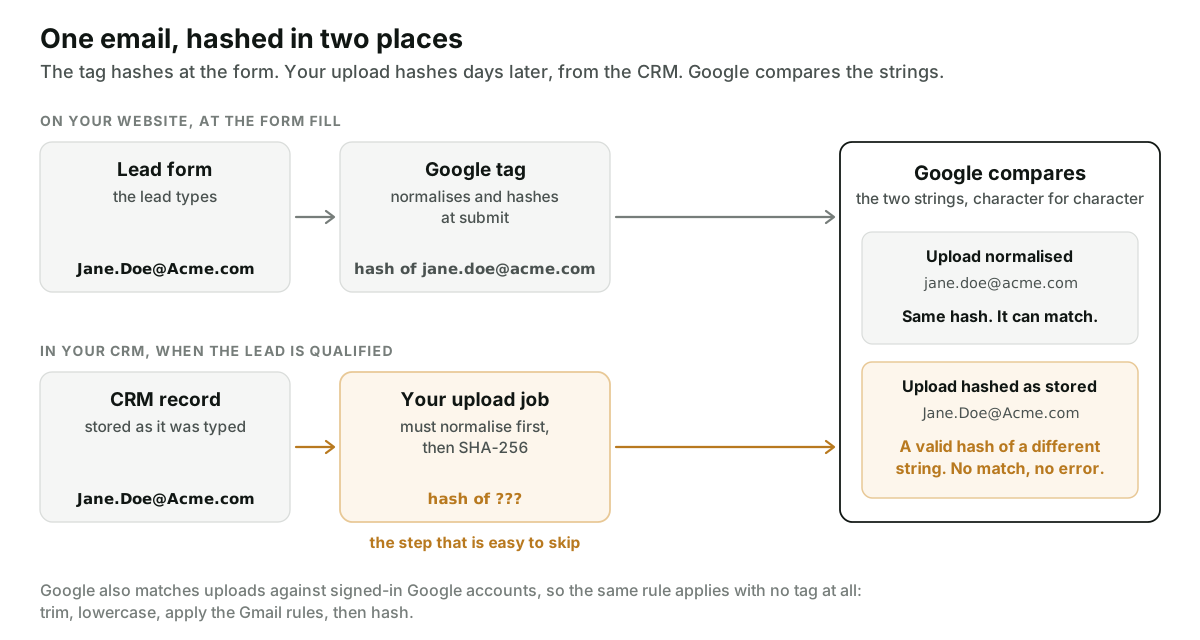
What you see. Everything upstream is fine, uploads succeed, and the alert is No user-provided data matches.
How to confirm. Take the test lead from cause 7. Work out by hand what its normalised email should be, hash it, and compare that string to what your upload job sent. The hash is made in two places, by the tag on your site and by whatever uploads from the CRM. They only meet if both started from the same normalised text.
Fix. Normalise before hashing: trim, lowercase, and apply Google's Gmail rules. Put phone numbers in E.164 format. The full rule set, including where Google and Meta differ, is in Hashing Emails for Google and Meta.
What do the diagnostics statuses mean?
The report is under Goals, then Summary, then the Diagnostics tab. Google's diagnostics page defines four statuses.
| Status | What Google means by it |
|---|---|
| Excellent | Setup is active and recording enhanced conversions as expected |
| Good | Active and recording, with room to improve |
| Needs attention | Active, with errors to fix, such as missing information |
| Urgent | Not active: for example tags not firing, or every tag ping missing user data |
And seven alerts, which map onto the causes above:
| Alert in the report | Cause to check |
|---|---|
| No attempted imports | 3 |
| Importing limited user-provided data | 5 |
| Tag not firing on your website forms | 7 |
| Tag is missing user-provided data | 7 |
| No user-provided data matches | 9 |
| Improve performance with the Google tag | 7 |
| Improve performance with Google tag user-provided data | 7 |
Notice what has no alert of its own: the terms, the feature switch, a secondary conversion action, the 63-day limit, consent. That is causes 1, 2, 4, 6 and 8, which is why the list starts with checks you do by hand.
On timing, Google says the alerts are based on the past one day of data, or the past seven days when one day is not enough. Imported conversion statistics take about three hours to show in the account, per the import guidelines. So fix one thing, wait a day, and read the report again.
If an upload returns an error code instead of silence, that is a different list. See Google Ads Offline Conversion Errors, Decoded.
How Attribi handles this
Attribi is the tool I build, so weigh this section accordingly.
Attribi covers the import half. When a lead reaches a mapped stage it is uploaded to Google Ads through the Data Manager API with the click ID and the hashed email and phone on the same event. That removes causes 3 and 5: there is always an import, and it is not filtered to rows with a click ID. Hashing happens on our servers to Google's rules, including the Gmail dot and plus handling.
For cause 1, our upload code looks for the terms rejection by name. If the lead has a click ID, it resends the conversion with the click ID only, so that lead still counts, and it flags the connection. Your Connections page then shows an "Accept Enhanced Conversions terms" button that opens Google Ads conversion settings. The flag clears itself on the next upload that succeeds with hashed data.
The limits, plainly:
- A lead with no click ID has nothing to fall back to. Until the terms are accepted, that upload fails.
- Attribi does not configure your Google tag. Causes 7 and 8 on the tag side are yours.
- Our upload does not currently set a per-event
consentfield. - Nothing we do extends the 63 days.
The detail of what is sent is on the Google Ads integration page, and the request itself is in the Salesforce guide. Conversion uploads are a paid feature. Every new workspace starts with 30 days on the Pro plan, no card required, long enough to connect Google Ads and see whether the terms prompt appears.
Frequently asked questions
How long should I wait before deciding enhanced conversions for leads is broken? Give it a full day after your first import. Google says imported conversion statistics take about three hours to appear, and the diagnostics alerts are based on the past one day of data, or seven days when one day is too thin.
Where do I accept the customer data terms in Google Ads? Open Goals, then Settings under Conversions, and find Customer data terms. Select View Terms, tick the box confirming you accept on behalf of your company, and select Agree.
What does the "No user-provided data matches" alert mean? Google received your imported hashed emails or phone numbers and none of them matched what it has on record. Google's own fix is to check that the imported data is normalised, hashed with SHA-256 and consistent with what your website forms collect.
Why do my uploaded leads match on click ID and never on email? Three causes produce that pattern. The customer data terms are not accepted, your import only includes rows that already have a click ID, or the hashes are built from text that was not normalised.
Do I need to reinstall the Google tag to fix enhanced conversions for leads? Not until you have ruled out the cheaper causes. Reinstalling changes nothing if the terms are unaccepted, nothing is imported, or the upload is late. Confirm the tag is the problem first by submitting a test form and looking for the form-data request with an em parameter.
Why does the diagnostics report show no alert when my conversions are still missing? Because several causes sit outside what the report measures. None of its seven alerts names unaccepted terms, a conversion action set as secondary, or an upload past 63 days.
The takeaway
Reinstalling the tag feels like progress because it is work. Reading two settings and one export filter feels like nothing, and it rules out three of the nine causes before anyone opens Tag Manager. Go down the list in order, change one thing at a time, and give the report a day between changes. If you would rather have the import half handled and the terms problem flagged for you, start with 30 days on the Pro plan.